How to add profile pics in facebook chat
follow these steps to add faces to chat-
- Get the username or profile id of the person of the group.
- Now write in chat [[username]] or [[user id]] and press enter.
- See the magical effect.
Author: Unknown |
00:36 |
No comments |
Author: Unknown |
00:33 |
No comments |
Author: Unknown |
00:05 |
No comments |
powercfg /hibernate off
Author: Unknown |
00:02 |
No comments |
To maintain your windows clean and hassle free, here are 6 cleaning utilities suggested on DownloadSquad to run your Windows like the first run.
Ccleaner : It is free, and has a portable as well as installation version. It is one of the best known, very intuitive to use, quick to analyze the system, not just clean the files, but it repairs the registry and even has an uninstall utility to manage and what programs are initiated with the system. It is my personal favorite, so we recommend twice.
COMODO System Cleaner : Also free, installable and portable versions available. Performs cleaning files, registry items and privacy, as well as a manager of programs that run automatically and a tool to make changes to the system. Doesn’t work well on Windows 7 but Portable one will do the job.
FCleaner : Does an excellent job at finding junk files, up to 15% more than Bleachbit. Also has an uninstaller, program manager for booting, and shortcuts to system tools. Free installable and portable.
Glary Utilities : Free portable. Along with the basic features (such as problems with search files, the registry or shortcuts broken), brings a few more features, like search for malware, optimize memory, encrypt files and analyze the use of disk space, among others.
nCleaner : Besides cleaning up files, provides a monitor of the system tools to modify the system, reducing space, program manager at startup, and support for many extensions that handle more specific tasks, like cleaning behind ACDSee, ICQ, Incredimail, Kazaa or Winamp.
Author: Unknown |
23:49 |
No comments |
FaceBook needs no introduction, its the best social networking website to get in touch with your family and friends.facebook wall brings us closer to your friends by status updates and follow up comments but lately I had to hunt for a genuine wall update due to annoying applications, quizzes and page like notifications which actually flooded my FaceBook wall. Now Here are two must have GreasesMonkey script for a clean and tidy FaceBook experience.
Before we start there are two points you sure be sure with:-
Now just download the two scripts mentioned below to experience all new FaceBook
F.B. Purity- This script removes application messages (FarmVille, MafiaWars etc), system messages (X likes Y, X joined group Y etc) from the news stream and advertisement and suggestion boxes from the sidebar.
Once you Install this script all such spam wall notification will be hidden leaving behind just the standard FaceBook apps such as status updates, wall posts, links, notes, photos, etc. If by any chance you wish to see the filtered notifications you can do so from the F.B. Purity notification section placed on top of your wall.
FaceBook Improved Notification Script
The function of this script is to remove the Repeat notifications of the notification menu. For example: When many of your friends comment the same Photo, you get one notification per comment, this script deletes them and only leaves the newest notification of each photo, wall comments, etc.
Conclusion
The above two scripts will surely enhance your FaceBook by cleaning and filtering all the junk and delivering to you what best for you. Now share the trick with your FaceBook friends gifting them a better FaceBook.
Author: Unknown |
02:22 |
No comments |
You can create user accounts separate for each person that will be using your computer.
To add a new user account
Step-1
Press Windows Key + R then type in “cmd” (without quotes) and hit enter, this will run command line
Step-2
In command line type this command net user UserName Password /add
Where:
UserName = Name of the user account
Password = Password of the user account
net user UserName Password /add
example:-
net user harshard 9489789 /add
To delete user account
Step-1
Press Windows Key + R then type in “cmd” (without quotes) and hit enter, this will run command line
Step-2
In command line type this command net user UserName /del
Author: Unknown |
02:18 |
No comments |
If some programs are running in Windows 7 and you Shut Down it then Windows 7 will spend some time to save data and close running programs before shutting it down. By default this time is 12 seconds in Windows 7 but you can reduce this time to speed up the shut down time. Its recommended to save you data and close all programs before Shut Down the Windows. Lets see how to speed up the Shut Down time in Windows 7 through registry.
Press “Windows + R” keys form keyboard, type “regedit” in the “Run” window and hit Enter key.
Step-2
In the “Registry Editor” window on the left side open the location "HKEY_LOCAL_MACHINE\SYSTEM\CurrentControlSet\Control"
Double click to Edit “WaitToKillServiceTimeout” key in the right pane of Registry Editor and change the value to 2000 (2 sec.) in “Value Data” field. Click OK to save data and close the Registry Editor. You can enter value from 2000 to 20000.

Author: Unknown |
02:10 |
No comments |
Windows 7 comes with “Aero Shake” fun feature which lets you minimize all open windows except the one on which you are currently working.
If you grab the title bar of any windows and shake it back and forth, all the other opened windows will be minimized except the one you’re shaking.
It’s pretty handy aspect sometimes but if you don’t like it, you can disable it. You can disable Windows 7 Aero Shake feature using a two manual and an automated procedure. You can follow any of the procedures mentioned below.
Download the following zip file: DisableAeroShakeWin7.zip
After extracting the above attached zip file, you will get 2 .reg files. Double-click the DisableAeroShake.reg and it will automatically perform all the manual procedure steps to Disable Aero Shake in Windows 7.
In order to disable Aero Shake in Windows 7 manually
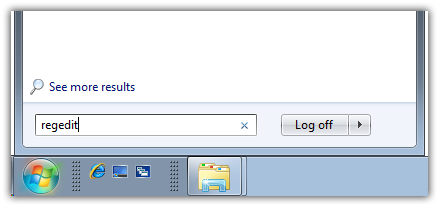
Go to Start Menu and type regedit in the search bar and hit the Enter button from your keyboard. It will open Registry Editor.
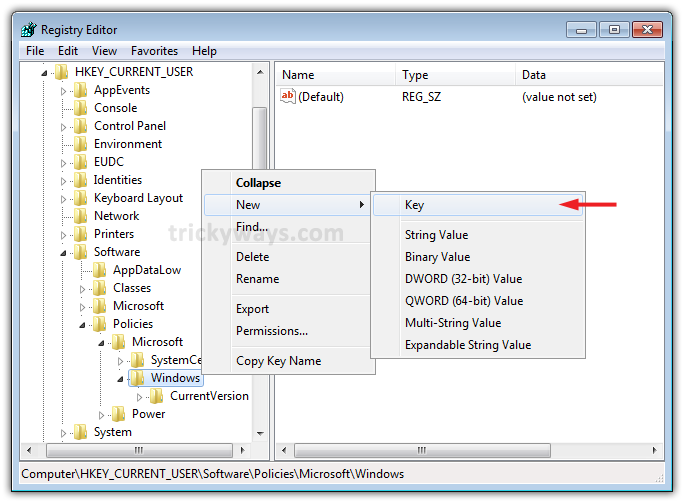
Now navigate down to the following key: HKEY_CURRENT_USER > Software > Policies > Microsoft > Windows
Right click on it and select Create to create a new key and name it as Explorer.
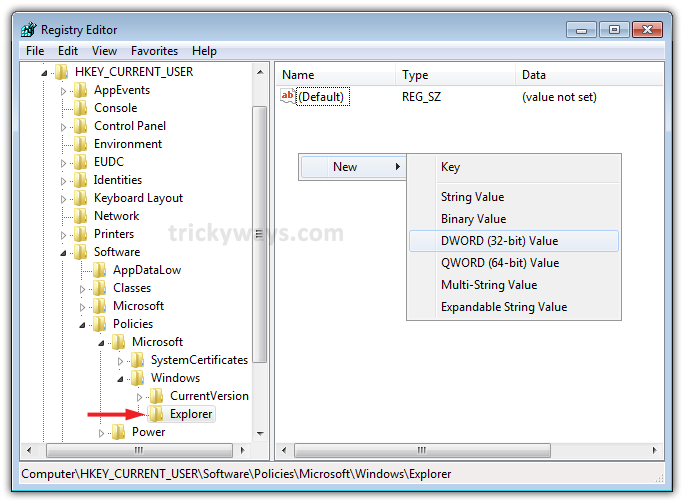
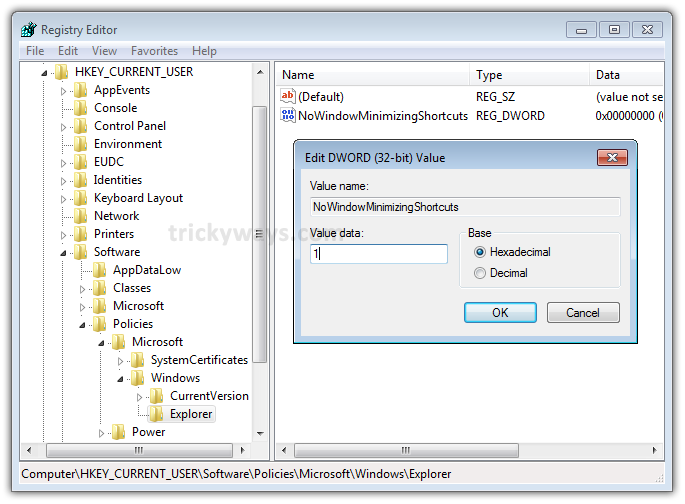
Now under Explorer key that you just created, right click on the right-hand side and select Create to create a new 32-bit DWORD. Set following attributes off new value:
Name: NoWindowMinimizingShortcuts
Value: 1
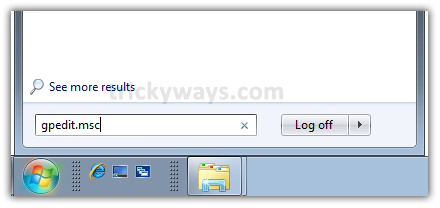
Go to: Start Menu and type gpedit.msc in the search bar and hit the Enter button to open the Group Policy Editor.
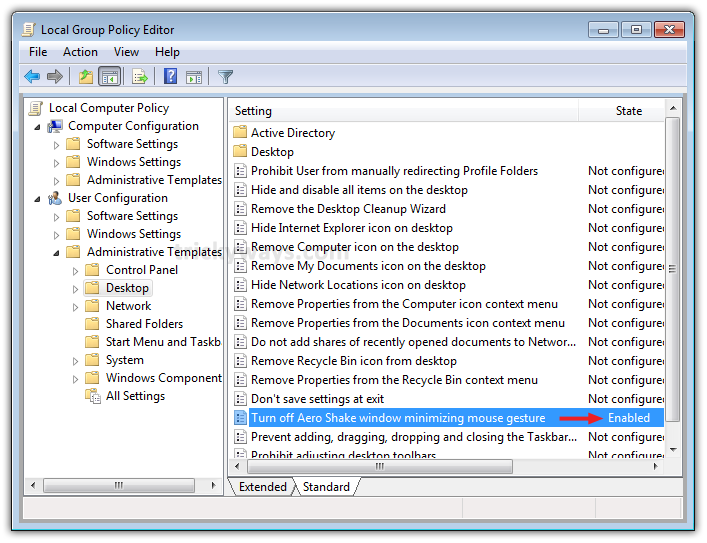
Go to: User Configuration >> Administrative Templates >> Desktop
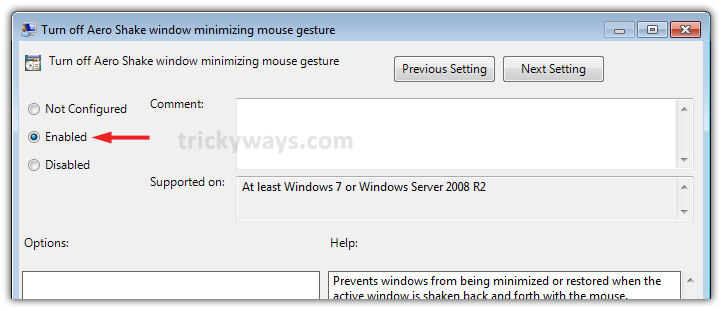
In right-side pane, double-click on Turn off Aero Shake window minimizing mouse gesture and select “Enabled“.

That’s it. It will immediately disable Aero Shake in Windows 7.
source:-http://www.trickyways.com/
Author: Unknown |
02:07 |
No comments |
Author: Unknown |
01:55 |
No comments |
Author: Unknown |
01:47 |
No comments |
powercfg -h on
Type the command given below in the command prompt windows and hit enter key
powercfg -h off
Author: Unknown |
01:41 |
No comments |
Author: Unknown |
01:40 |
No comments |
Remove Start button form taskbar. Start Killer is a free utility that removes the Start button from your taskbar and give you additional space on taskbar.
Well if the Start button is hidden and you want to access Start Menu using CTRL+ESC or Win Key form keyboard. You can also restore the Start button very easily by just closing the Stat Killer utility. You can close Start Killer utility from its system tray icon or to change setting press CTRL+ALT+SHIFT+F12 to open settings dialog box.
You can remove Start Menu Button in Microsoft Windows 7, Vista, XP, Me, 2000
Remove start button Download
Author: Unknown |
01:26 |
No comments |
Author: Unknown |
01:15 |
No comments |
2.This will open Command Prompt, copy the following command paste and hit enter
net user administrator /active:yes
Now press lock and press swith user and see the administrator account is available
3.
To disable Administrator again just put ‘no’ instead of ‘yes’ at the end of the command
net user administrator /active:no
Author: Unknown |
00:51 |
No comments |
Author: Unknown |
00:33 |
No comments |
Author: Unknown |
23:04 |
No comments |
Author: Unknown |
22:57 |
1 comment |
Author: Unknown |
22:48 |
No comments |
Microsoft frequently releases Security and other essential updates for windows.These updates fix newly discovered bugs and flaws and increases efficeny and protection of Windows.If you don’t have internet connection or have slow internet then you can’t get the updates directly from microsft instead you have to use a third party utlity called Autopatcher.
AutoPacher allows you to download for your windows Operating system and saves it for offline installation.This gives you the liberty to update any computer without internet connection.
That’s it! This is the best method to install the updates in Offline mode and secure your PC. This works for all windows OS (Window 7/Vista/XP).
Author: Unknown |
01:22 |
No comments |
The Default state is Not Configured and Folder Options is Enable
Author: Unknown |
01:05 |
No comments |


Disable Windows Search
If you want to disable Windows Search, click on Start and select Control Panel.
In Control Panel switch to Large Icons View and click on Programs and Features.
Next in the left panel click on the Turn Windows features on or off hyperlink.
Scroll down the list and uncheck the box next to Windows Search.
Click yes to the message asking if you’re sure you want to continue.
Now click Ok in the Windows Features window.
A progress message comes up while the changes take place.
Then a restart is required to complete the changes.
When you get back from the reboot you’ll no longer see the Search box in the Start Menu.
The search box in Windows Explorer will also no longer show.
Author: Unknown |
00:53 |
No comments |
Author: Unknown |
00:18 |
No comments |
RD /S /Q "Full Path of Folder"RD /S /Q "C:\Users\UserName\Desktop\Folder"
Author: Unknown |
23:50 |
No comments |
Author: Unknown |
02:38 |
No comments |

Author: Unknown |
22:05 |
No comments |
Hello friends this post is quiet interesting and very useful for everybody in their life...
For this we have so many methods... let discuss one by one...
1.Bulk Image Down loader:-just copy the URL of web album and make paste into bulk image down loader and press scanning....after scanning u have press download option, before going for downloading u have to select download directory… visit here
2. Download fbDownloader (905Kb) and install it. And login with our Facebook id and password and give permission to that application and download your desired photos... visit here
3.Pick N Zip: Pick& Zip is a totally free online tool that will allow you to download photos from Facebook in a single zip or pdf file. You do not have to download any software on your computer to use Pick n Zip. Visit here
4. Fotobounce
If you are more of desktop application kinds, then FotoBounce is a nice alternative for you. It is a tool to organize photos for Windows and Mac OS X which helps you to view and download photo albums from Facebook. It also has a great feature of face recognition. It is compatible to both Facebook and Flickr. Download FotoBounce from here.
5. Photo grabber:-Photo Grabber is another simple desktop application which allows you to download Facebook Photo albums to your computer.
Download Photo Grabber for Windows
Download Photo Grabber for Mac
6.FACEPASTE ADDON:-
after downloading this add-on just close ur restart ur browser and go to tools and select ur Facebook album download ... go for Facebook album and select Facebook album download ...
Download face paste add-on
7. Album copier: - is another tool that lets you download photo albums from sites like Facebook. You can pause or resume the download and start from anywhere in the album. Get Album Copier here.
Author: Unknown |
08:31 |
No comments |
2. Select a blog if you have more than one, then click on Add Widget.

3. (Optional) For better performance, Drag and Drop the LinkWithin box under the "Blog Posts" box.

4. Click on Save.

And you're done! The widget should now appear on your blog.
If there is a technical problem with the widget, visit our support page
Author: Unknown |
04:03 |
No comments |
Author: Unknown |
03:44 |
No comments |
1. Open your computer and open you cd/dvd rom and put in your bootable cd/dvd of your chosen operating system, then restart your computer.
2. While the computer reboots, you will see this image on your screen.

3. Press any key or Enter, spacebar, or anything you like, then wait (you will see this message “setup is inspecting your system configuration…”), don’t do anything until it comes to this page: (Windows Setup, setup is loading files page )

4. Wait until loading of files is finished.
5. A page will appear that looks like this, then press ENTER to continue.

6. EULA (end-user license agreement) page will appear then press F8 to agree and continue the setup.

7. A page will appear that displays the existing operating system installed on your pc, then press ENTER as stated below to continue setup.
8. The screen will show the different partitions on your computer and it will look like the image below, highlight the partition named C: by following the instructions below the screen on how to select an option, then again press ENTER to setup windows on the selected partition.

9. There will be four options that will be displayed, choose FORMAT THE PARTITION USING NTFS FILE SYSTEM or you can choose the first option FORMAT THE PARTITION USING NTFS FILE SYSTEM (QUICK), then press ENTER again to continue setup.

10. Then wait until setup formats the partition.

11. After formatting, wait again until setup finishes copying files to windows folders, this may take minutes.

12. After copying of files, the setup will now reboot to continue the installation, wait 15 seconds and it will automatically reboot, or press ENTER if you can not wait 15 seconds.

13. The computer will reboot and wait until setups continues, you will see the image below and wait for about 30 to 45 minutes for setup to finish installation.

14. You have now successfully formatted your computer and a fresh copy of windows is installed.
Author: Unknown |
03:21 |
No comments |
1. Insert the dvd and do restart
2. On your bios setup by pressing f12

4. After loading the files, the setup is now starting windows.
5. The first step that will appear on your computer is the windows 7 setup that asks for the language you want to install, normally language is english and kung want nyo ng ibang language just click the drop down option and choose whatever you like, the click NEXT.

6. The setup will ask you to install windows 7 and you will see an option like this “INSTALL NOW”, click it to install.

7. Setup is now starting, wait until EULA is displayed on your screen, check the box below that says “I accept the licnese agreement”, then click NEXT.

8. A window wil appear and will give you two options, since we are formatting your computer, choose the option “CUSTOM(ADVANCEED)”.

9. The setup will now show you your local disks or drives, choose the disk that has the previos operating system, normally it is C:, then click “ADVANCED” on the side and you will see three options added under the local disks, there you will see the option “DELETE”(delete an existing partition), “FORMAT”(formats the selected partition), “EXTEND”(extends the size of the selected partition if there is still unpatitioned space).

10. Since we are just formatting you computer and the partitions are already made, choos the optio “FORMAT”, if you want to change or create a new partition, click “DELETE” to delete the previous partition and create a new one.
11. After choosing the “FORMAT” option, the setup will now format your drive, after formatting, click “NEXT” for the setup to continue.
12. The setup will now copy and install files, you just need to wait for it to finish.

13. While the setup continues, your computer will automatically reboot.
NOTE: While the computer reboots, do not press any key so it will not boot your cd/dvd again.

14. Wait until setup finishes.
15. Your computer will again reboot and wait, the setup is now preparing you computer for fist use of the new OS.

16. There will be personnal information needed to be typed as asked by the setup.(username, password,etc….)


17. The setup will ask for your product key then click “NEXT”, you can enter your product key later if you want.

18. And the setup goes and it will ask for settings to be used on updating and protecting your computer, choose “RECOMMENDED SETTINGS”.

19. The setup will ask for the date and time, our time zone is pacific time GMT 8 if i’m correct.(Common sense na poh toh)

20. Setup will ask you to select your computers current location, choose “HOME NETWORK” then wait.

21. WINDOWS 7 IS INSTALLED…..

22.you sucessfully installed os after you have installed drivers accordind to ur os type either it is 32 bit or 64bit... U want avoid this step its better to installed windows ultimate sp1
Enjoy& comment to be alive and futher posts