How to Disable Aero Shake in Windows 7
|
02:10 |
No comments |

Windows 7 comes with “Aero Shake” fun feature which lets you minimize all open windows except the one on which you are currently working.
If you grab the title bar of any windows and shake it back and forth, all the other opened windows will be minimized except the one you’re shaking.
It’s pretty handy aspect sometimes but if you don’t like it, you can disable it. You can disable Windows 7 Aero Shake feature using a two manual and an automated procedure. You can follow any of the procedures mentioned below.
Method-1: Automated Way (Downloadable Registry Hack)
Download the following zip file: DisableAeroShakeWin7.zip
After extracting the above attached zip file, you will get 2 .reg files. Double-click the DisableAeroShake.reg and it will automatically perform all the manual procedure steps to Disable Aero Shake in Windows 7.
Method-2: Manually (Registry Hack)
In order to disable Aero Shake in Windows 7 manually
Step-1
Go to Start Menu and type regedit in the search bar and hit the Enter button from your keyboard. It will open Registry Editor.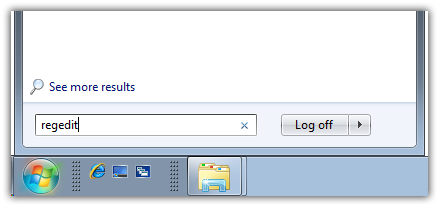
Step-2
Now navigate down to the following key: HKEY_CURRENT_USER > Software > Policies > Microsoft > Windows
Right click on it and select Create to create a new key and name it as Explorer.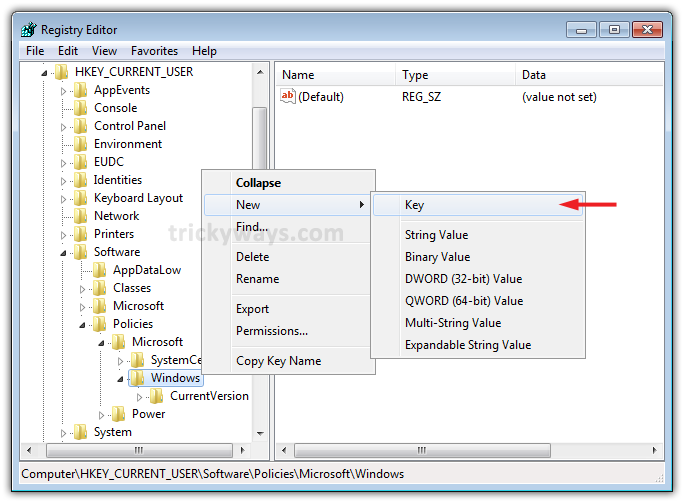
Step-3
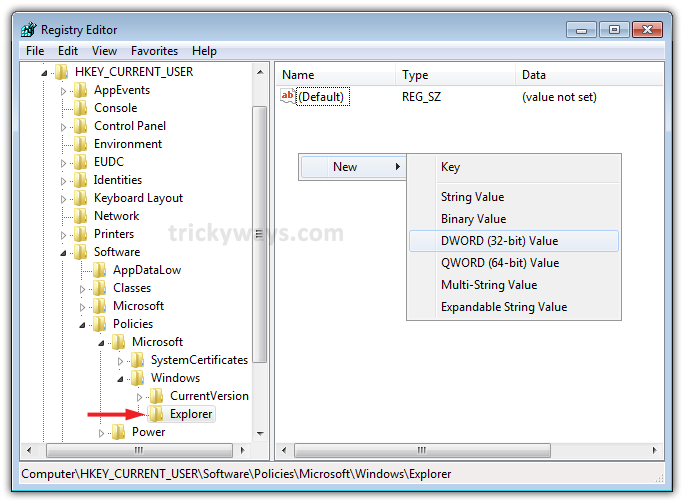
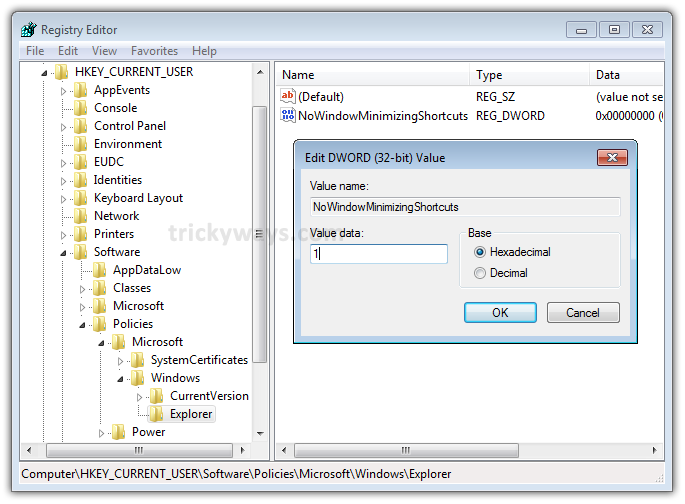
Now under Explorer key that you just created, right click on the right-hand side and select Create to create a new 32-bit DWORD. Set following attributes off new value:
Name: NoWindowMinimizingShortcuts
Value: 1
Mehtod-3: Using Group Policy Editor
Step-1
Go to: Start Menu and type gpedit.msc in the search bar and hit the Enter button to open the Group Policy Editor.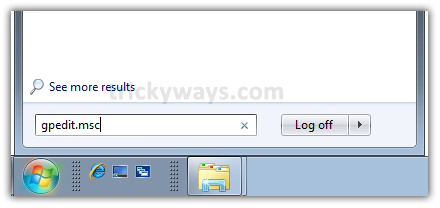
Step-2
Go to: User Configuration >> Administrative Templates >> Desktop

In right-side pane, double-click on Turn off Aero Shake window minimizing mouse gesture and select “Enabled“.
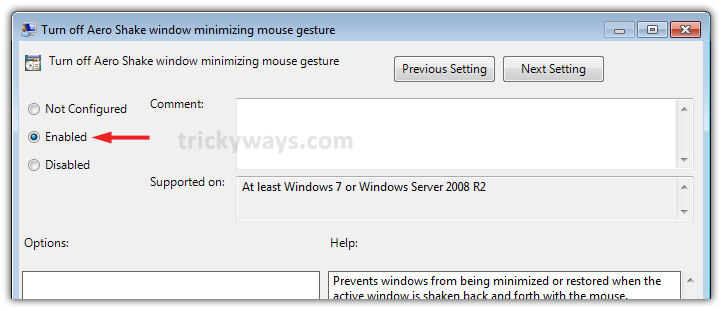
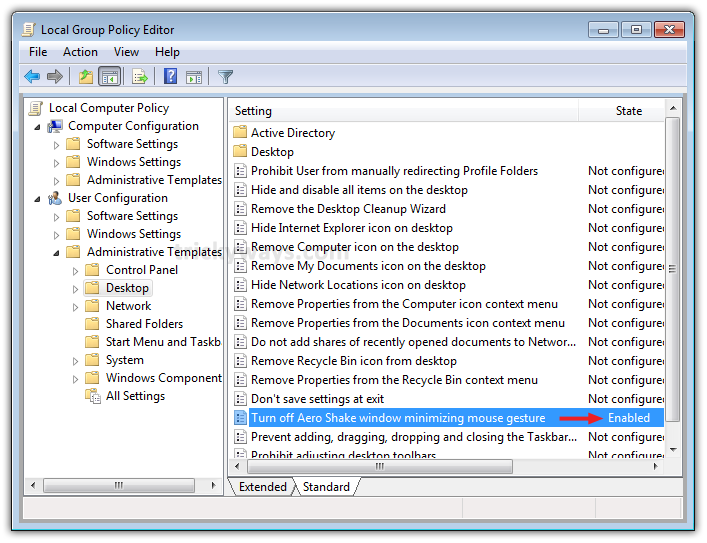
That’s it. It will immediately disable Aero Shake in Windows 7.
source:-http://www.trickyways.com/


0 comments:
Post a Comment